← Knowledge Base

Connect to Microsoft 365 or Outlook online accounts with OAuth2

Microsoft 365 and Outlook.com require OAuth2 (modern authentication). Configure as follows:

  1. Set the server type to IMAP, server address outlook.office365.com, port 993.
  2. Set the authentication type to "OAuth2 Microsoft".
  3. Click "Connect OAuth2". A Microsoft sign-in page opens in your browser.
  4. Sign in and complete identity verification (MFA if required).
  5. Grant POPcon permission to read your email.
  6. Return to POPcon — the status should show "Authenticated".
  7. Click "Test access" to verify.

No password entry is needed. The OAuth token is maintained and refreshed automatically by POPcon.

Screenshots — step by step

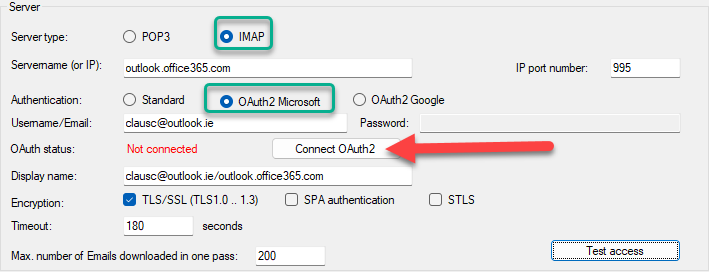
Note: The IP port number for Microsoft IMAP with OAuth is 993, as shown below.
Click on the Connect OAuth2 button to start the OAuth authentication process. A web browser window will open, asking you to sign in with your Microsoft account.
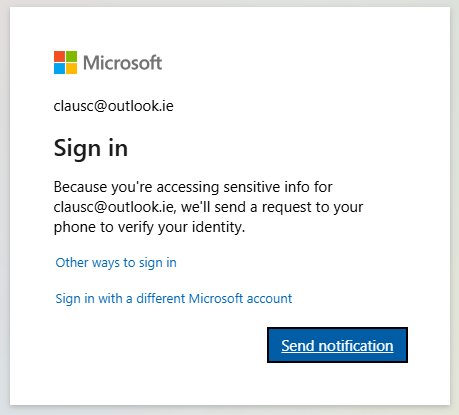
Microsoft will prompt you to verify your identity. You will receive a notification to your phone or other authentication methods to sign in securely. Verify your identity to proceed.
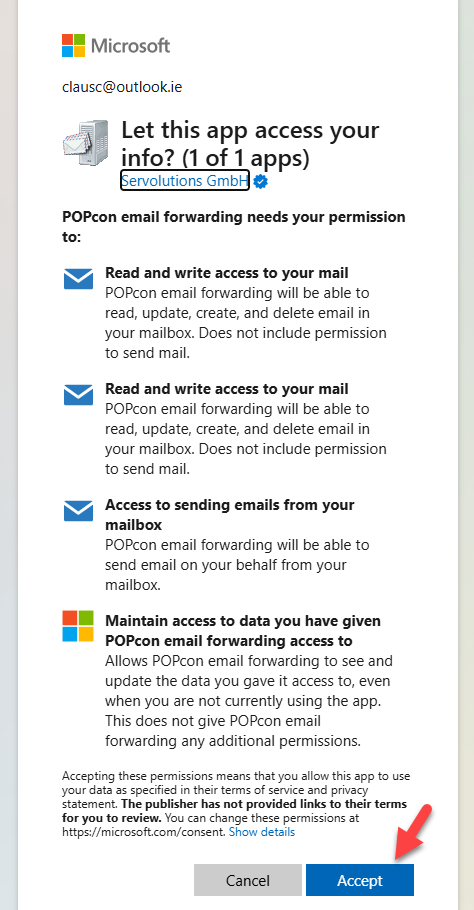
Microsoft will ask for permission to allow POPcon email forwarding to read, update, create, and delete emails from your Outlook account. Review the permissions and click Accept to grant access.
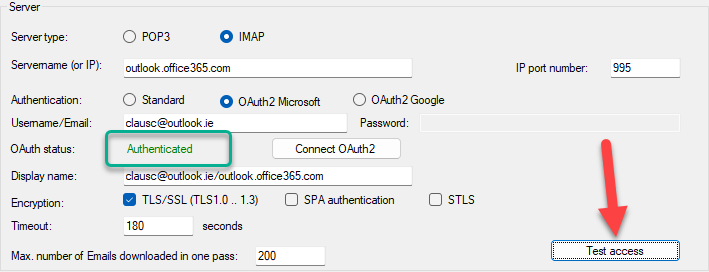
After authentication, the status in POPcon will show as Authenticated. You can now test the email account connection by clicking on the Test access button to ensure that everything is configured correctly.
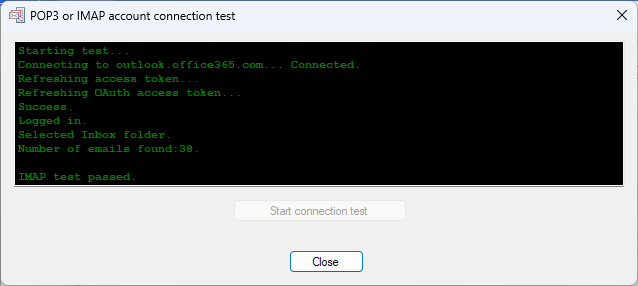
POPcon will test the connection to your Microsoft Office 365 or Outlook online account. If the test passes successfully, you are all set to retrieve emails using OAuth authentication.

Need more help? Contact support