← Knowledge Base

Exchange SMTP connection unexpectedly closed, or "454 5.7.3 Client does not have permission to submit mail"

Exchange 2007: SMTP service conflict

If the Windows "Simple Mail Transfer Protocol (SMTP)" service is running, it conflicts with Exchange on port 25. Disable and stop this Windows service.

Exchange 2007: Antispam blocking

Add the POPcon server's IP address to the IP Allow List in Exchange antispam settings, and disable the antispam agent temporarily for testing.

Exchange 2003: Message filtering

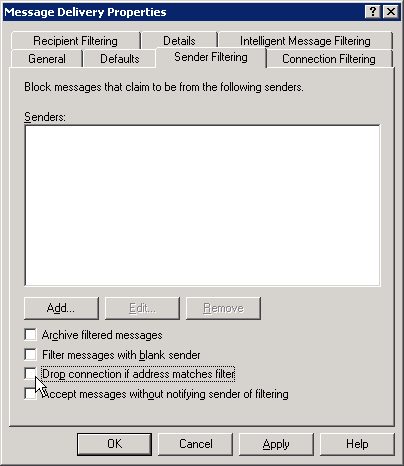
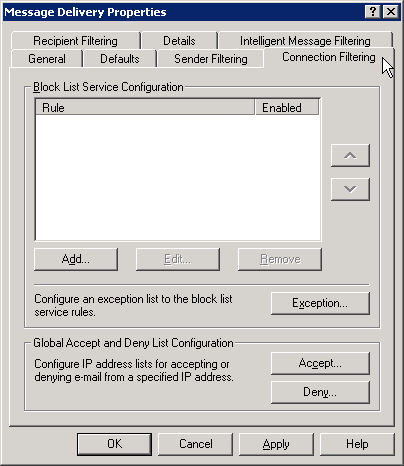
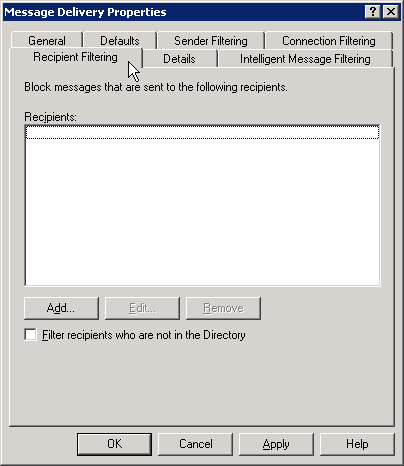
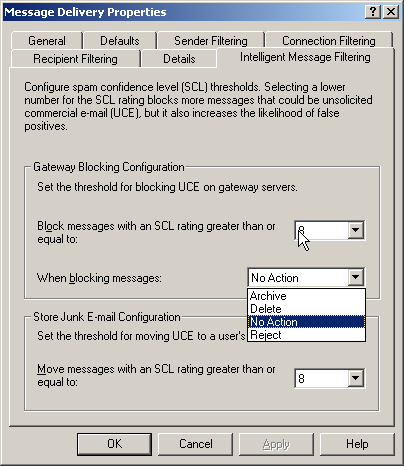
Disable sender filtering, recipient filtering, and intelligent message filtering in Exchange System Manager.

General: Firewall / antivirus

Configure firewalls or antivirus products to silently drop blocked emails rather than closing the TCP connection — an abrupt connection close looks like an error to POPcon.

Screenshots — step by step
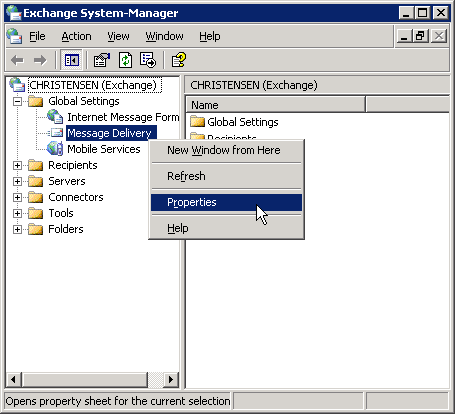
Exchange 2003: The most common cause is sender, recipient or intelligent filtering turned on in Exchange. Check these configuration pages in the Exchange System Manager
Ensure that the "Drop connection if address matches filter" option is turned off
The connection filter configuration should be empty
And the recipient filtering option should be turned off (ensure that "Filter recipients..." is not activated)
Intelligent Message Filtering tab
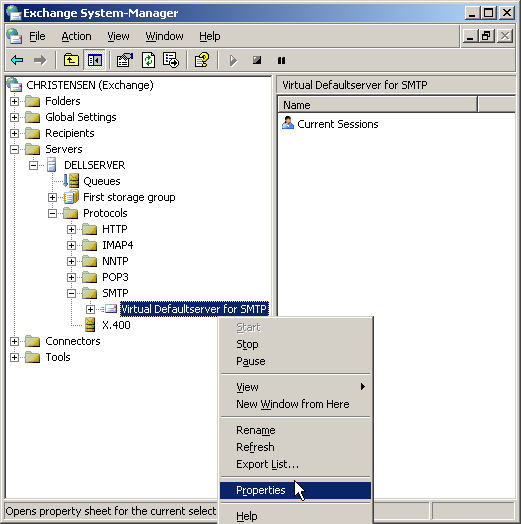
• You will find the settings for the SMTP server under Servers/Protocols/SMTP/Default SMTP Virtual Server. Open the properties by right-clicking on the Default SMTP Virtual Server and choosing "Properties"
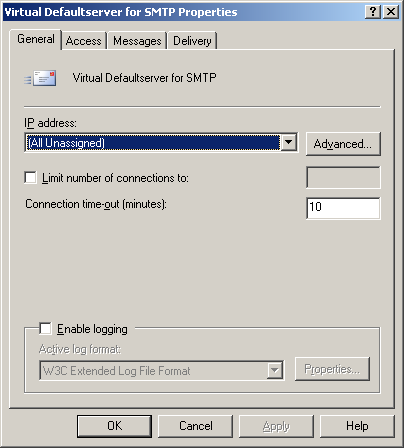
• The settings on tab “General” can normally be left to the defaults.
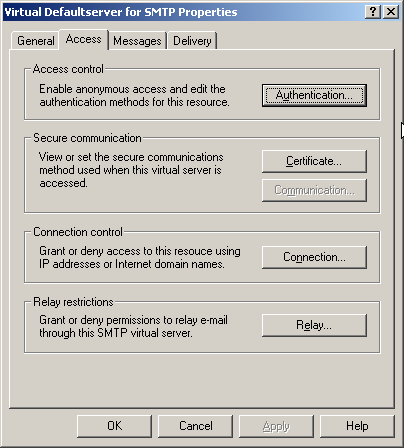
• On the tab "Access" you can find some configuration settings that might interfere with POPcon.
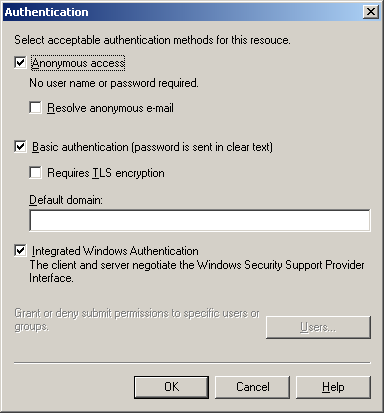
• POPcon only works with a standard SMTP connection WITHOUT authentication, so allow "Anonymous access" in the "Authentication" dialog

Need more help? Contact support